
Contents
- Attaching License During Deployment
- Launching BriefCatch Standalone
- Individual subscriptions
- License Activation & Renewals
Attaching License During Deployment
BriefCatch Standalone uses an annual license key for licensing and authentication. Users do not need to create an account or login. If the license file is included during deployment using the LICENSESOURCE parameter, no further action is required by your users.
For more information, please see Deployment & Installation: Mass Deployment.
Launching BriefCatch Standalone
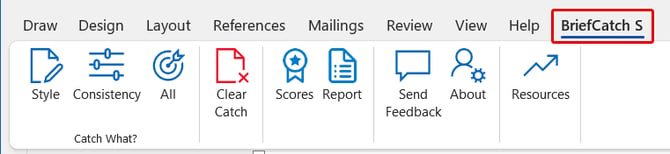
Once installed, users will see a BriefCatch S tab in the Microsoft Word ribbon. Clicking this tab will display available editing and analysis tools.
Please note: after installing BriefCatch Standalone, you must activate it within 7 days. Until then it runs in free trial mode, and it stops working once the 7 days are up.
Individual subscriptions
BriefCatch Standalone is now sold through enterprise plans only, but existing individual subscriptions continue and still auto-renew. If you have one, we recommend Subscription Sign-In: it connects the software to your subscription and keeps it active for as long as your subscription remains valid. Without it, license keys need to be reinstalled once they expire.
Subscription Sign-In
- Click the BriefCatch S tab in Word, then click About.
- In the About window, click Subscription Sign-In. If you don't see the button, click Sign Out first.
- Enter your BriefCatch username and password, then click OK.
- BriefCatch looks up your account. When you see the confirmation message, click OK.
Downloading your license file
Log in to the BriefCatch Standalone Portal, open the BriefCatch Standalone tab, and click Download License. Save the file somewhere you'll remember, such as your Downloads folder. Don't open or run it; install it using Manual Installation above.
If you run into issues with Subscription Sign-In or installing licenses, contact our support team.
License Activation & Renewals
Important Note: For enterprise customers, BriefCatch Standalone does not auto-renew or auto-refresh license keys. You must manually update the license at the end of each subscription term.
You have three options to install or update license keys:
Manual Installation (User-Initiated)
- In Microsoft Word, go to the BriefCatch S tab.
- Click About, then Install License.
- Note: You may need to click Sign Out before installing a new license.
- Select the updated license file and click Open.
- A confirmation message will appear: “Your license was successfully imported.”
New Deployment with Updated License
Re-deploy BriefCatch Standalone using the MSI installer and include the updated license file using the LICENSESOURCE parameter.
Be sure to check the BriefCatch Standalone Portal for the latest version before redeploying. This is a good opportunity to ensure your users are on the most up-to-date release. If you prefer, you can also redeploy using the same version that was originally installed.
Direct Replacement via File Push
Replace the license file directly on each machine:
- User installation: C:\Users\{username}\AppData\Roaming\bcms\BriefCatch_license.key
- Machine installation: C:\ProgramData\bcms\BriefCatch_license.key
Ensure the file name is exactly BriefCatch_license.key.
This method supports automation via Group Policy, scripting, or deployment tools like SCCM.
Note: If your license update fails, or if you receive an error when updating a license key, confirm that users or deployment tools have write access to the destination directory. See User license key doesn’t refresh after updating for more details.