
Note: If your organization previously used BriefCatch 3, your users can sign in to BriefCatch Next with their existing BriefCatch credentials.
Contents
- Launching BriefCatch Next
- Authentication
- Admin Consent for BriefCatch Authentication
- Video Walkthrough
- Microsoft Single Sign-On
- Email & Password
- Organization Code
Launching BriefCatch Next
After deployment is complete, your users will find BriefCatch Next under the Home tab in Word. Click the BriefCatch icon to open the BriefCatch Next app.
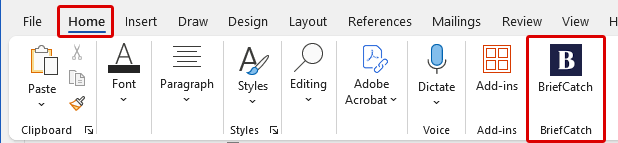
Please Note: In most cases, centrally deployed apps will show up within minutes or hours. But in some cases it can take up to 72 hours to fully propagate for all of your users.
If the BriefCatch icon doesn't appear under the Home tab after 72 hours, see our Add-in not showing up after deployment instructions.
Authentication
The first time BriefCatch Next is opened, your users will need to create a new account under your organization.
This can be done with Microsoft Single Sign-On (recommended) or by manually entering an email address and password.
Admin Consent for BriefCatch Authentication
BriefCatch Next uses two related Microsoft enterprise applications: one for the Office add-in and one for BriefCatch authentication. The authentication application manages user sign-in for BriefCatch Next and the BriefCatch Admin Portal, including Microsoft SSO and email/password sign-in.
When BriefCatch Next is deployed through Microsoft 365 Integrated Apps, admins grant consent for the Office add-in application. However, some Microsoft tenants also require separate admin consent for the BriefCatch authentication application before users can sign in.
If users see an “Approval required” or “Need admin approval” message when signing in from the add-in or portal, this usually means the authentication application has not yet been approved.
This does not mean the add-in was deployed incorrectly. It usually means your tenant requires admin approval before users can access newly introduced enterprise applications, and the BriefCatch authentication application has not yet been approved.
If users receive an admin approval message when signing in, a Microsoft 365 / Entra admin should grant admin consent for the BriefCatch authentication application:
Application ID:1b1f7b82-17dd-48ba-9d4f-7196ae3f6dfa
To grant consent:
-
Open the Microsoft Entra admin center or Azure Portal.
-
Go to Enterprise applications.
-
Search for BriefCatch or the Application ID above.
-
Select the BriefCatch application.
-
Under Security, select Permissions.
-
Click the blue Grant admin consent button.
If the BriefCatch application does not appear under Enterprise applications, or if the admin is unable to locate it, a Microsoft 365 / Entra admin can try granting consent directly using Microsoft’s admin consent URL: https://login.microsoftonline.com/organizations/adminconsent?client_id=1b1f7b82-17dd-48ba-9d4f-7196ae3f6dfa&redirect_uri=https://express.briefcatch.com/admin-consent-success
After consent is granted, users should be able to sign in to BriefCatch using SSO from both the BriefCatch Next add-in and the BriefCatch Portal.
Video Walkthrough
The Loom below walks you through the authentication process using both Microsoft SSO and email/password.
Microsoft Single Sign-On
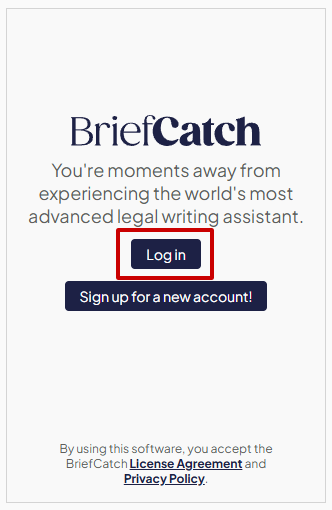
On the welcome screen, click Log in.
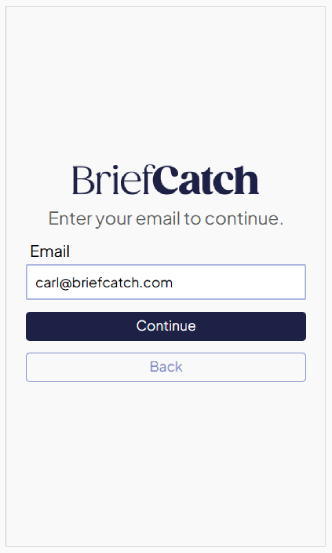
Enter your organization email address, then click Continue.
This will open a new window. On this screen, click Continue with Microsoft.
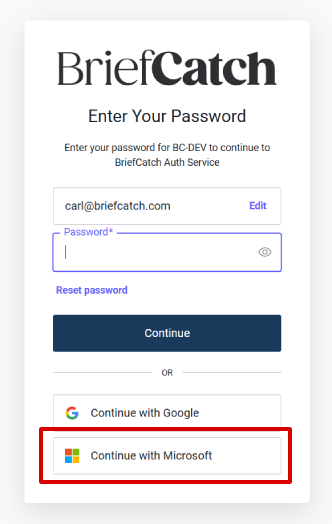
If you already have an account, this will log you in. If you are opening BriefCatch for the first time, this will register your account and automatically link it to your organization.
There's no further action required when using Microsoft SSO. Your account creation will be handled automatically.
Return to the add-in and start using BriefCatch!
Email & Password
If your users can't use Microsoft SSO to create or login to their account, they can also create an account using an email address and password.
To do this, click on Sign up for a new account!
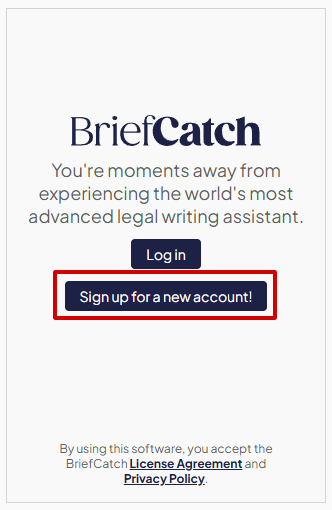
This will open a registration page in their browser.
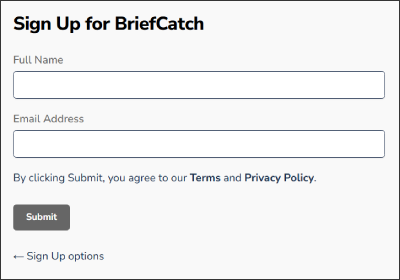
After entering their name and email, a verification email will be sent to the user’s email address with a link to confirm the registration and to set an account password.
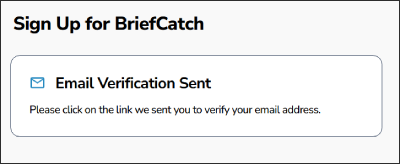
Please Note: An email address from your organization's domain must be used. A personal email address, such as @gmail.com, will not work properly. Email verification is required to complete registration and access the BriefCatch application.
After the verification process is complete and account had been activated, users can return to the BriefCatch application in Word to log in:
-
Click Log in
-
Enter you email address
-
Confirm your email address and enter your password
-
Click Continue
Return to the add-in and start using BriefCatch!
Organization Code
If your organization is on a shared domain, your users may be prompted to enter an organization code during registration. If you aren't sure what your organization code is, contact our support team for further assistance.