
BriefCatch Next includes new optional features, including AI capabilities to enhance your writing, along with additional non AI functionality and enterprise grade controls.
Note: AI features are off by default. Administrators can enable or disable AI for the organization. No one can use AI unless an admin grants access.
Contents
- BriefChat
- Citation Suggestions
- Managing AI Access for Your Organization
- Keeping AI Disabled
- AI Disclosure
- Lightning Bolt (Express Editing)
- Managing Lightning Bolt Access for Your Organization
BriefChat
BriefChat is a conversational Q&A tool powered by AI trained exclusively on Ross Guberman’s legal-writing guidance and the BriefCatch rule set. You can use BriefChat to ask questions and receive writing suggestions directly inside Word, without leaving your document.
BriefChat is not a general-purpose AI chatbot. It doesn’t rely on open web data. Instead, it draws only from Ross’s published writing expertise and the proven editing principles used throughout BriefCatch, ensuring guidance that is precise, reliable, and tailored to legal and professional writing.
To open BriefChat, click the  icon at the top of the BriefCatch panel.
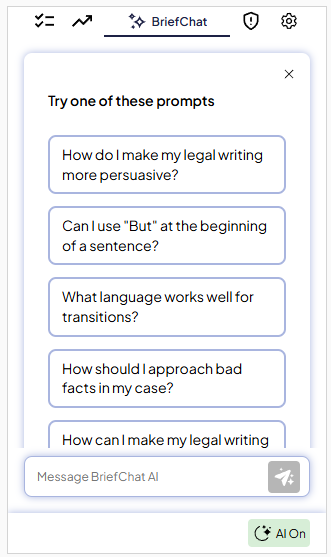
You can select a suggested question or type your own. Continue the conversation with follow-up questions, or start fresh at any time. (Saved conversations will be available in a future update.)
Note: BriefChat's AI does not analyze, access, or transmit the contents of your document. Prompts and responses are not reviewed or used for training. To maintain confidentiality obligations, please avoid entering client names, case details, or other sensitive information.
Citation Suggestions
When AI is enabled, BriefCatch combines its traditional rule-based citation engine with AI pattern recognition to provide more refined and context-aware citation suggestions. The AI Citation suggestions will appear under the Review cards, just like other suggestions.
If AI is on, these settings can be managed under: Settings - Preferences - CiteCheck AI.
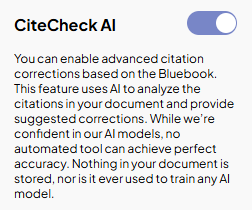
If you prefer to review AI suggestions before they are applied, enable: Automatic AI citations checking.
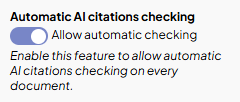
This will prompt you to confirm whether to use AI-based citation suggestions each time you review a document.
Managing AI Access for Your Organization
All AI features are disabled by default for every user. To enable AI for your organization, an Application Owner or Admin can update this setting in the BriefCatch Admin Portal under the Features tab.
Organization admins can access the BriefCatch Admin Portal at: https://express.briefcatch.com/
If you have trouble accessing the portal or updating AI settings, please contact our support team and we can help.
AI access can currently only be enabled or disabled at the organization level. User-level controls (enabling AI for specific users) are not yet supported.
If AI is enabled or disabled for your organization, that status will be shown for your users in the bottom right of BriefCatch panel:
AI Enabled and On

AI Enabled and Off

Users can click on the AI toggle to turn it on or off.
When AI is disabled at the organization level, users cannot turn it on themselves. In this case, the AI toggle will appear grayed out and cannot be changed.
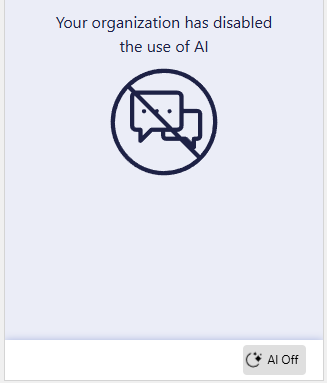
AI Disabled and Off

When AI is disabled, users will see a message like the one shown below if they attempt to use an AI feature:
Keeping AI Disabled
AI settings affect only BriefChat and AI-assisted citation suggestions. All other BriefCatch features, including grammar, style, clarity suggestions, scoring, and reporting, continue to rely solely on our rule-based engine.
If your organization chooses to keep AI OFF, you will still receive the full core BriefCatch editing experience and reports without any impact to functionality.
AI Disclosure
To learn more about how AI operates within BriefCatch and how data is handled, please review our AI Disclosure.
Lightning Bolt (Express Editing)
Note: AI is not required to use the Lightning Bolt (Express Editing) feature. It can be enabled and used whether AI features are turned on or off.
The Lightning Bolt icon allows users to apply all active BriefCatch suggestions in a document at once. When selected, BriefCatch automatically turns on Track Changes (if they're not already on) and applies every available suggestion.
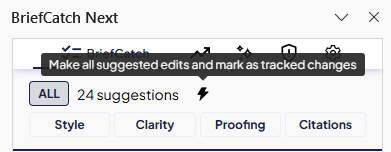
If a suggestion card contains multiple correction options, the Lightning Bolt applies the first or default recommendation for that card.
The Lightning Bolt applies only BriefCatch generated text edits. It does not remove, alter, or interact with existing comments, footnotes, or any other tracked changes already present in the document.
All changes made by Lightning Bolt can be undone using Word’s standard Undo command (CTRL+Z on Windows or CMD+Z on Mac). Users may also review and manually accept or reject individual edits directly from Word’s Track Changes pane.
Managing Lightning Bolt Access for Your Organization
The Lightning Bolt (Express Editing) feature is on by default for all users.
To disable this setting for your organization, an Application Owner or Admin can update the Express Editing setting in the BriefCatch Admin Portal under the Features tab.
When disabled, the Lightning Bolt icon appears grayed out, and the feature is unavailable to all users in your organization.
