
Learn more about BriefCatch Standalone below! If you have any additional questions, run into any issues, or would like to provide feedback, please send us an email.
Contents
Information & Compatibility
BriefCatch Standalone is a locally installed COM/VSTO add-in for Microsoft Word. It’s designed for Windows environments and does not require an internet connection to function. Supported versions include:
- Windows: Word 2013+ (32-bit or 64-bit)
- Mac: Not supported
- Word Online: Not supported
Please Note: BriefCatch Standalone is only available for Windows desktop installations of Microsoft Word. It is not compatible with Word on Mac or Word Online (Word for the Web).
Security
Does BriefCatch Standalone connect to the cloud or any external servers during processing?
No. BriefCatch Standalone processes documents entirely on your local machine. It does not connect to the cloud or any servers while scanning, editing, or analyzing documents. No document content is ever transmitted, stored, or logged.
Functionality
Is an internet connection required to use BriefCatch Standalone?
No. Once installed, BriefCatch Standalone runs fully offline. An internet connection is not needed for document scanning or editing.
What functions does BriefCatch Standalone provide?
BriefCatch Standalone offers three core editing modes: Style, Consistency, and All. Each mode is designed to enhance different aspects of your legal writing.
- Style: This feature taps into thousands of editing possibilities designed to make the document crisper, tighter, and more precise. The edits are all automatic, you just “Accept” or “Ignore” each one, with no rewriting needed.
- Consistency: This feature focuses less on style and more on pure accuracy. With one click, you can spot and fix inconsistent language, formatting, and punctuation along with commonly confused words and citation errors.
- All: This feature explores nearly every aspect of a draft. On top of all the automatic style and consistency checks, you’ll be prompted to recast passive constructions, streamline quotations, cut dates, shorten sentences, and vary your transitions.
Can I run BriefCatch Standalone on part of my document?
Yes. By default, the Catch functions will run on the entire document. However, you can also select the text you'd like to analyze before clicking on Catch. BriefCatch Standalone will only analyze the selected text.
BriefCatch Standalone User Guide
For more information on BriefCatch Standalone functions, see: How to Use BriefCatch Standalone
Subscriptions
How can I sign up for a BriefCatch Standalone subscription?
BriefCatch Standalone is sold through enterprise plans for law firms, government agencies, courts, and other organizations, and is purchased through our sales team. It is not available to buy online. Existing individual subscriptions continue to renew.
See our How do I sign up for BriefCatch? for details on the right plan for you or your team.
Installation
How do I install BriefCatch Standalone?
If you have an active subscription, you can download BriefCatch Standalone as either an EXE or MSI installer (available as a per user, or per machine installer.) Once downloaded, simply run the installer on your Windows machine.
View our detailed installation instructions for more information.
How do I deploy BriefCatch Standalone to multiple users or groups?
BriefCatch Standalone supports deployment via SCCM, Intune, or other enterprise software distribution tools.
View our BriefCatch Standalone deployment instructions for more information.
Does BriefCatch Standalone work with secure remote access programs such as Citrix?
Yes. BriefCatch Standalone is compatible with Citrix and similar remote desktop environments.
Frequently asked questions
Download & Installation
How do I download BriefCatch Standalone?
If you have an active subscription for Standalone, login to our Standalone portal to access the Standalone installer.
If you're having trouble, please contact our support team for assistance.
How do I install BriefCatch Standalone?
Installing BriefCatch Standalone is a piece of cake: you simply download an .exe file and then open it to start the installation process. It takes about 30 seconds. The next time you open Word, BriefCatch S will be the last tab on the right.
See our BriefCatch Standalone: Installation Options article for more information.
Note: Make sure Word is closed before you install BriefCatch Standalone.
Does BriefCatch Standalone work on Macs?
No. Standalone only works on PC.
Does BriefCatch Standalone work with Office365?
Yes. BriefCatch Standalone works on Word 2013 or later.
Note: BriefCatch Standalone is not compatible with Word Online.
What are the minimum system requirements to run BriefCatch Standalone?
Windows 7 or newer operating system with Word version 2013 or newer.
My browser is warning me that BriefCatchInstaller.exe may be unsafe.
Some browser settings may prevent .exe files from being downloaded, or warn you that the file may be unsafe. If prompted, make sure you mark BriefCatchInstaller.exe as safe so you're able to access the file.
Are there any prerequisites for installing BriefCatch Standalone?
The only requirements are a Windows PC with Word.
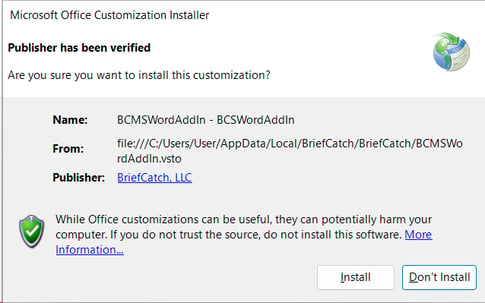
After I installed BriefCatch Standalone, I received a notice upon opening Word. What does this mean?
The first time you open Word after installing BriefCatch Standalone, you may be prompted to confirm the installation. If so, click the Install button.
There is no BriefCatch S tab in Word after installing or updating BriefCatch Standalone.
This can occur if the software was installed using administrative privileges, then a user account without the same administrative privileges attempts to run it. It can also occur if it was installed by a different user account then the one you are using. By default, BriefCatch Standalone installs to the user account that is logged in and is only accessible by that user account. (If you're installing BriefCatch Standalone on a work computer, your IT department should be able to verify this.)
This can also occur if Word was open while BriefCatch Standalone was installed. To help resolve this, completely uninstall BriefCatch Standalone, restart your computer, then try installing BriefCatch Standalone again. Make sure Word is closed before running the installation again.
If reinstalling BriefCatch Standalone does not solve this issue, please follow the steps in our documentation or contact our support team.
I see a BriefCatch tab in Word but BriefCatch Standalone does not work.
If BriefCatch Standalone will install but does not function, please contact us for help.
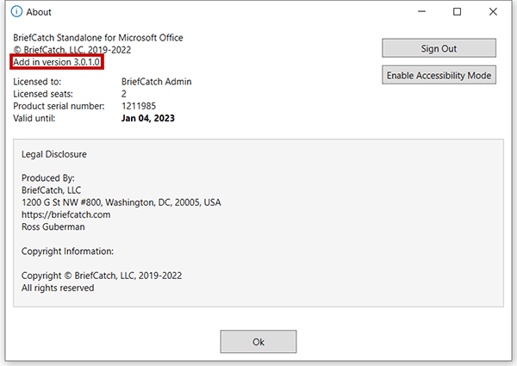
How do I know which version of BriefCatch Standalone I’m running?
Under the BriefCatch S tab in Word, click About. The installed version will be shown like the screenshot below:
How do I update the BriefCatch Standalone software?
Please reference this guide or contact our support team for assistance.
How often is the BriefCatch Standalone software updated?
BriefCatch Standalone is updated a few times a year. See the release history for every version and its release notes.
How do I uninstall BriefCatch Standalone?
To disable the add-in within Word, click on File - Options, then click on Add-ins. Next to Manage COM Add-ins, click Go. Uncheck BriefCatch Standalone for Microsoft Office.
You can completely remove BriefCatch Standalone from your computer in two ways:
- Open the installation file and select Uninstall.
- Click the Windows Start Menu and type "Add or remove programs", then click on it. Find BriefCatch Standalone within the list, click on it, and choose Uninstall.
View our uninstall documentation if you need more thorough instructions.
Does BriefCatch Standalone work with Google Docs?
No.
Does BriefCatch Standalone work on mobile devices?
No.
Features
How do I use BriefCatch Standalone?
Once installed, BriefCatch Standalone will appear as a tab within the ribbon in Word. Click the tab to access the BriefCatch Standalone functions. For more information, you can reference our BriefCatch Standalone User Guide.
What functions does BriefCatch Standalone provide?

Style: This feature taps into thousands of editing possibilities designed to make the document crisper, tighter, and more precise. The edits are all automatic—you just “Accept” or “Ignore” each one—with no rewriting needed.
Consistency: This feature focuses less on style and more on pure accuracy. With one click, you can spot and fix inconsistent language, formatting, and punctuation along with commonly confused words and citation errors.
All: This feature explores nearly every aspect of a draft. On top of all the automatic style and consistency checks, you’ll be prompted to recast passive constructions, streamline quotations, cut dates, shorten sentences, and vary your transitions.
Clear Catch: Clears the BriefCatch Standalone markup.
Scores: Scans the document and displays global statistics based on five proprietary algorithms that each yield a maximum score of 100.
Report: Generates a detailed report of the document’s style strengths, weaknesses, and wording patterns.
Send Feedback: Allows you to share feedback, report issues, or make suggestions.
About: Displays information about the BriefCatch software and license.
Resources: Online link to relevant articles and longer explanations.
Update Available: Shown if there is a new version of BriefCatch Standalone available to download. (Can be hidden for 30 days.)
Can I run BriefCatch Standalone on part of my document?
Yes! By default, the Catch function will run on the entire document. However, you can also select the text you'd like to analyze before clicking on Catch. BriefCatch Standalone will only analyze the selected text.
What is Subscription Sign-In?
You can use our Subscription Sign-In feature to automatically manage your license.
This will allow you to connect your BriefCatch account to the BriefCatch Standalone software. See our Subscription Sign-In guide for more information.
What is Accessibility Mode?
Accessibility Mode gives BriefCatch Standalone high-contrast ribbon icons. It does not add screen reader support. To turn it on, open About from the BriefCatch S ribbon, click Enable Accessibility Mode, then restart Word. See our Accessibility statement for more.
Does BriefCatch Standalone connect to the cloud or any servers?
While scanning documents, BriefCatch Standalone only runs locally. It never connects to the cloud or to any servers, nor does it track or report any usage data to us or to any third parties.
Licenses
How do I install my BriefCatch Standalone license?
Enterprise
For mass deployment information, see BriefCatch Standalone Enterprise: Deployment & Installation.
Individual
You can use our Subscription Sign-In feature to automatically manage your license.
Alternatively, you can find your license file on the BriefCatch portal. Click the BriefCatch Standalone tab, then click the download link to save the license.key file to your computer. Don't try to run or open the file, just save it to your computer in a location you will remember, such as your Downloads folder.
To install your BriefCatch license, do not open the license file directly. Open Word, then click on About under the BriefCatch tab. From there, click on Install License. Navigate to the license file you downloaded above and press Open. You will then receive the message "Your license was successfully imported."
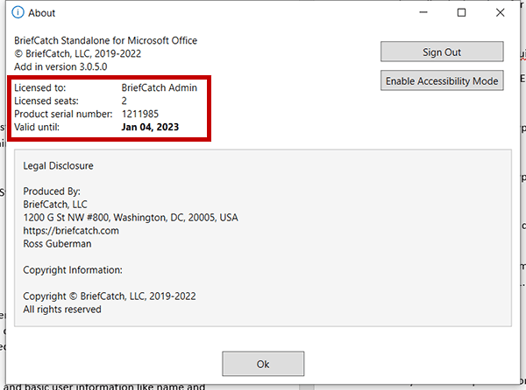
How do I know when my BriefCatch Standalone license expires?
The Standalone portal shows the details of your license, including expiration.
You can also view your license details, including when it expires, by clicking the About button under the BriefCatch S ribbon within Word. You will see details like the screenshot below:
My license file was rejected or will not install properly.
If you’re having trouble installing your license, please contact us and include the error message you’re receiving.
How can I cancel my individual BriefCatch Standalone subscription?
BriefCatch Standalone is now sold through enterprise plans only, but existing individual subscriptions continue. To cancel auto-renew, log in to the BriefCatch Standalone Portal, go to the Subscription tab on your account page, and click Cancel. Your license stays active until it expires. If you need further help, contact our support team.
Your BriefCatch Standalone license will still be active until it expires, but you will not be billed again unless you decide to renew your license
Account Information
How can I log in to the Standalone portal?
Navigate to our Standalone page then follow the link to the Standalone portal.
Where can I find details on my BriefCatch Standalone subscriptions and payments?
Visit your account page under the Subscriptions and Payments links after logging in to the Standalone portal.
I’ve forgotten my password.
We do not have access to any member’s passwords. If you’ve forgotten yours, click on 'Forgot Password' from the Standalone portal login screen.
I’ve forgotten which email address I used to register.
Please contact us and we can help you.
How can I provide feedback, endorsements, or suggestions?
Please contact our team. We would love to hear from you!