
This guide explains how to fully remove BriefCatch Next from Microsoft Word. Steps differ depending on whether your organization installed BriefCatch through the Microsoft 365 admin center or you installed it yourself through Word.
Contents
Enterprise
If BriefCatch was deployed centrally through the Microsoft 365 admin center, you can remove it directly from Integrated Apps.
Open the Microsoft 365 admin center and navigate to Settings - Integrated apps. Locate BriefCatch Next in the list and select it.
To remove the app for all users, select Remove app.
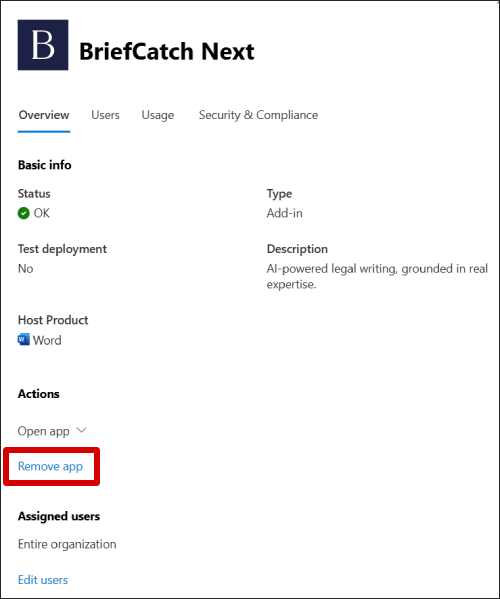
If prompted, confirm to remove.
To update which users have access instead of fully removing the app, open the Users tab and change which users or groups are assigned.
If BriefCatch Next was deployed to a group, you can also modify that group under Teams & Groups - Active teams & groups and remove specific users. When a user is removed from a group that BriefCatch is assigned to, the app will no longer appear for that user.
Please Note: After removing BriefCatch Next from Integrated Apps, the add-in will normally disappear from Word automatically. However, Microsoft 365 changes can take up to 72 hours to fully propagate to all users and devices.
If the BriefCatch Next icon still appears after 72 hours, try the following steps:
Refresh Add-ins in Word
Option 1: Restart Your Computer
This can force Word to reload its add-ins list for your account.
Option 2: Sign Out and Back Into Office
- In Word, go to File - Account
- Select Sign Out
- Close and reopen Word
- Sign back into your Microsoft 365 account
These steps typically force Word to re-sync with Microsoft 365 and remove add-ins that were deleted from Integrated Apps.
Clear Office Cache
If the icon still appears or loads a blank panel, clearing the Office cache removes any stale manifest data.
Windows
- Close all Office applications (Word, Outlook, Excel, etc.)
- In explorer, navigate to the following folder:
- %LOCALAPPDATA%\Microsoft\Office\16.0\Wef\
- Delete all contents inside this folder (but not the folder itself)
- Reopen Word and confirm that the BriefCatch Next add-in no longer appears
Mac
- Close all Office applications (Word, Outlook, Excel, etc.)
- Open Finder and press Command + Shift + G to open Go to Folder.
- Paste the following path and press Enter:
- ~/Library/Containers/com.microsoft.Office365ServiceV2/Data/Documents/WeF
- Delete all contents inside this folder (but not the folder itself)
- Reopen Word and confirm that the BriefCatch Next add-in no longer appears
Retail/Professional Users
If you installed BriefCatch Next yourself from Word, you can remove it directly within the Word Add-ins menu.
Open Word and navigate to Home - Add-ins - More Add-ins.
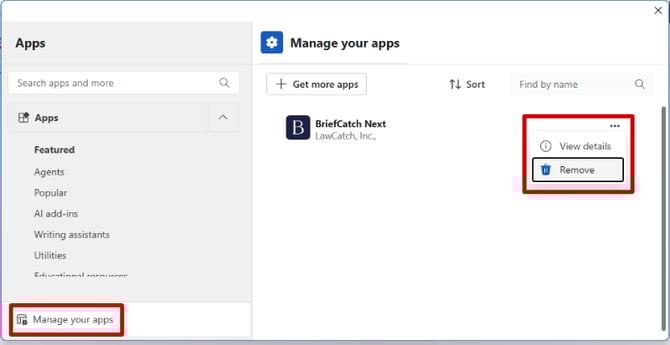
Select Manage your apps.
Find BriefCatch Next in the list, select the three-dot menu, and choose Remove.
Customer Support
Need help? Our support team is happy to assist you!
- Submit a Support Request
- or email us directly: help@briefcatch.com